
PACKAGE INSPECTOR
PACKAGE INSPECTOR
Installation from epic store (fab lab)
*coming soon*
Installation from source
Download and extract the plugin archive.
To make the plugin available globally for all projects, place it in:
\UE_5.x\Engine\Plugins\
For example:
C:\Program Files\Epic Games\UE_5.5\Engine\Plugins\PackageInspector
To make the plugin available only for a specific project, place it in:
\*YourProject*\Plugins\
For example:
D:\Work\MyProject\Plugins\PackageInspector
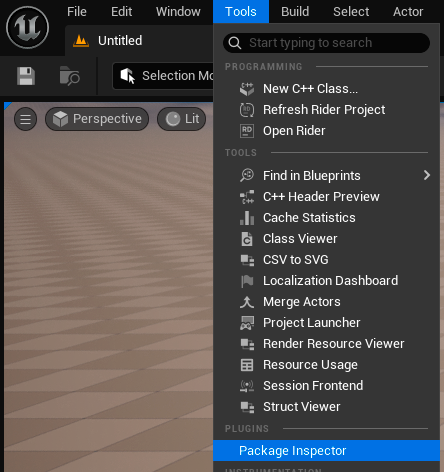
Restart the engine. Then go to Tools -> Package Inspector.
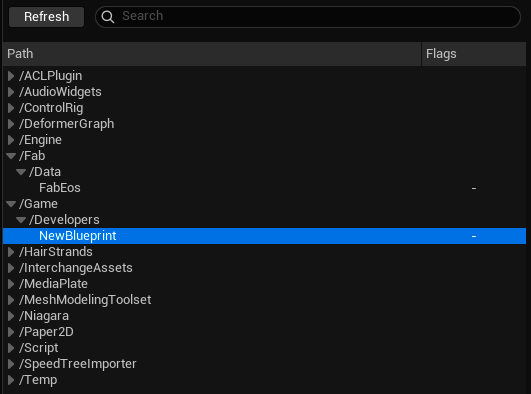
The left panel displays a tree of packages already loaded into memory.
The tree hierarchy reflects the directory structure.
If the environment state has changed (for example, you started PIE or loaded/unloaded an asset or package), click Refresh to update the tree to its current state.
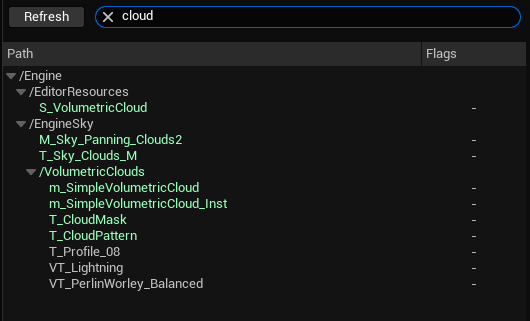
If you don’t know the exact location of the package you need, use the search bar.
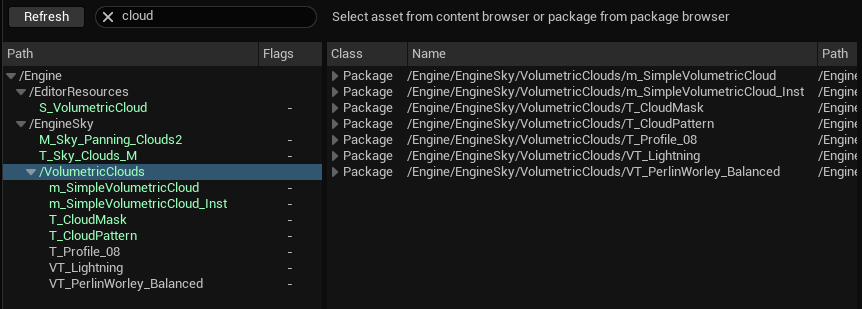
You can select a single package, multiple packages, or even an entire folder for analysis.
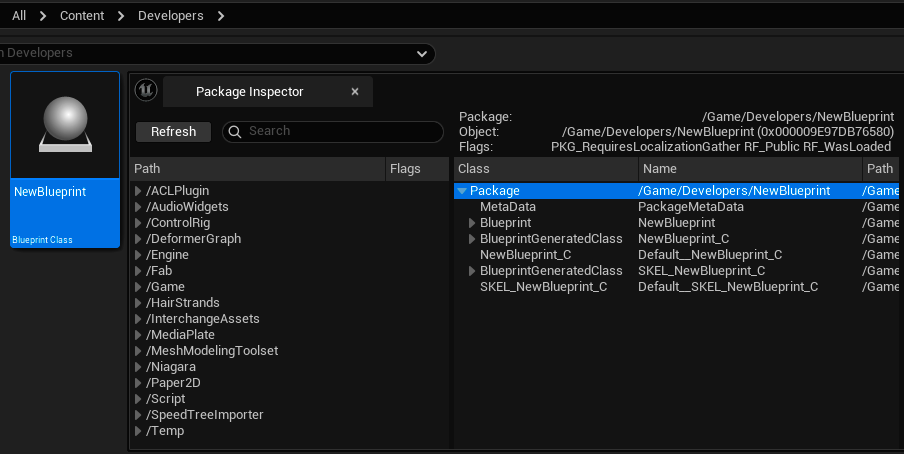
The central panel displays the contents of the selected package.
You can select a package not only from the tree in the left panel, but also by simply selecting an asset in the Content Browser (the asset will be loaded if it isn’t already).
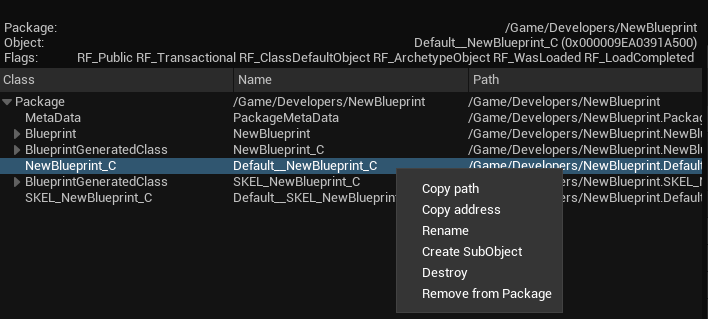
You can expand the package content tree. The root object acts as the outer object for all nested objects.
The header shows the outermost package of the selected object, the object name, its memory address, and flags (RF_ for objects, RF_ + PKG_ for packages).
A context menu is also available for objects selected in this panel.
Copy Path – copies the full path of the selected objects
Copy Address – copies the memory addresses of the selected objects
Rename – renames the object without changing its outermost package
Create Subobject – creates a new object of the selected class and assigns the selected object as its outer
Destroy – sends a request to the garbage collector to remove the selected object
Remove from Package – moves the selected object to the transient package without deleting it
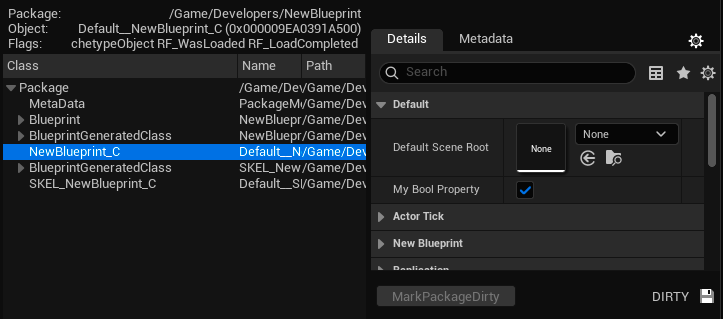
Opens the Details panel for the selected object.
This is the standard Details panel with familiar fields and categories that you can edit if needed.
For example, you can change the default value of MyBoolProperty from false to true for the CDO.
In most cases, after modifying a property, the object automatically marks its outermost package as “dirty” so the editor can prompt you to save changes. However, this doesn’t always happen, so there is a separate MarkPackageDirty button at the bottom, along with a status indicator showing whether the editor will prompt to save changes (dirty) or not (clean).
If you changed something by mistake, don’t worry - you can simply choose not to save the file when exiting the editor. That said, I strongly recommend using a version control system so you can roll back unintended changes if needed.
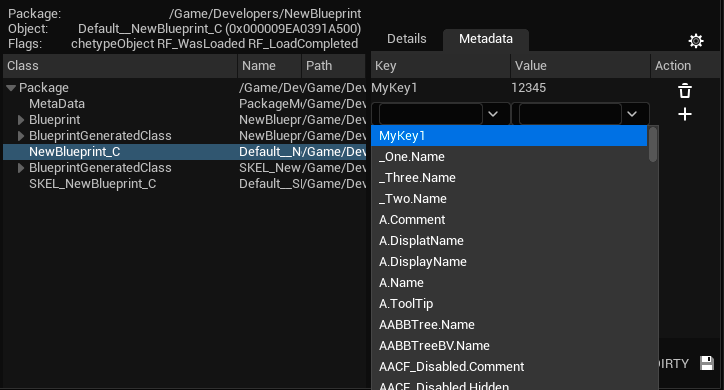
You can remove existing metadata or add new metadata to the selected object.
When adding new metadata, you can either enter a custom key and value manually or choose from a list of existing metadata keys and their values. This can be useful when developing tools, as it allows you to embed additional information into an asset without tying it to its type.
It’s also worth noting that metadata is not included with assets when packaging (in a built project), so avoid relying on metadata for runtime gameplay logic.

! Be sure to use a version control system in your project when using Package Inspector !
Commit your changes before experimenting with package modifications so you can easily roll back if needed.
Package Inspector - is advanced tool for advanced developers. User mistakes when using certain
features of this tool can cause engine crashes, and modifying assets may lead to data loss.
Read the documentation on dev.epicgames.com to make sure you know what you're doing.